DOCS
Manual
Korpus is the shared memory a team and its AI assistants work from. Instead of pasting context into every chat, people and agents read and update the same bundles. This manual covers the web app and connecting an AI app, from a first bundle to a team with agents on rules.
What Korpus is
A place for what a team knows — decisions, runbooks, specs, notes, checklists — kept so that both people and agents can read and change it. It suits engineering and operations teams, support desks, consultancies and anyone whose AI assistants should work from the same, current knowledge.
People use the web app at fra.korpus.cloud. AI apps such as Claude, ChatGPT or Claude Code connect over MCP (the Model Context Protocol, the standard way AI apps reach tools), sign in as you, and work in the same bundles. Every change is stamped with who made it, and through which agent. Everything is stored in Frankfurt, in the EU; see Data and privacy.
The pieces
| Bundle | One collection of memory for one subject: a product, a project, a client. Everything lives in a bundle, and you share it as a whole. |
|---|---|
| Folder | Groups concepts. Folder names make up a concept’s path, like runbooks/rotate-signing-key, and the tree of folders is how people and agents find things. |
| Concept | One markdown document at a path. It has a title, a one-line description, a type (Decision, Runbook, whatever the bundle uses), tags, links to other concepts and a revision number. One concept is one thing. |
| README and AGENTS | Two concepts with a job: README is where people start reading, AGENTS tells agents how the bundle works. Put them at the root, and in any folder that needs them. |
| Link | A typed connection between two concepts, like “depends on”. Each bundle names its own kinds of link. Called a relation over MCP. |
| Agent | The name an AI app signs in as. The built-in me agent is you, with your full rights; every other agent gets a job and rules that say which paths it may touch. |
| Template | A published, read-only bundle in the catalog. Use template gives you your own copy to work in. |
What people use it for
Anything a team and its agents keep coming back to. Three worked through end to end:
- Multi-cloud landing zone: One landing zone spec, three clouds.
- Incident response: From Slack chaos to a blameless postmortem.
- Security audit: Audit evidence that stays current all year.
Smaller ones: a support team’s known issues and help articles; a consultancy’s notes per client; architecture decisions an agent checks before it writes code; meeting notes a chat assistant files away; a personal research notebook. The Catalog in the app has templates for many of these.
Quickstart
Two ways to a first bundle. Do either, or both: a bundle made in one shows up in the other.
In the web app
- Create an account: a username, your email, accept the terms. Enter the six-digit code from the email, then make a passkey — a sign-in stored on your device, no password — or skip it; an emailed code always works.
- On Bundles, press New (New bundle on a phone). Give it a Name and, if you like, a Description. Press Create bundle. It is ready in a few seconds.
- Open it, press New and choose Concept. Type a title; the path fills in from it in lowercase. Change the Path to
README, press Create concept, and write in markdown what the bundle is for. Save.
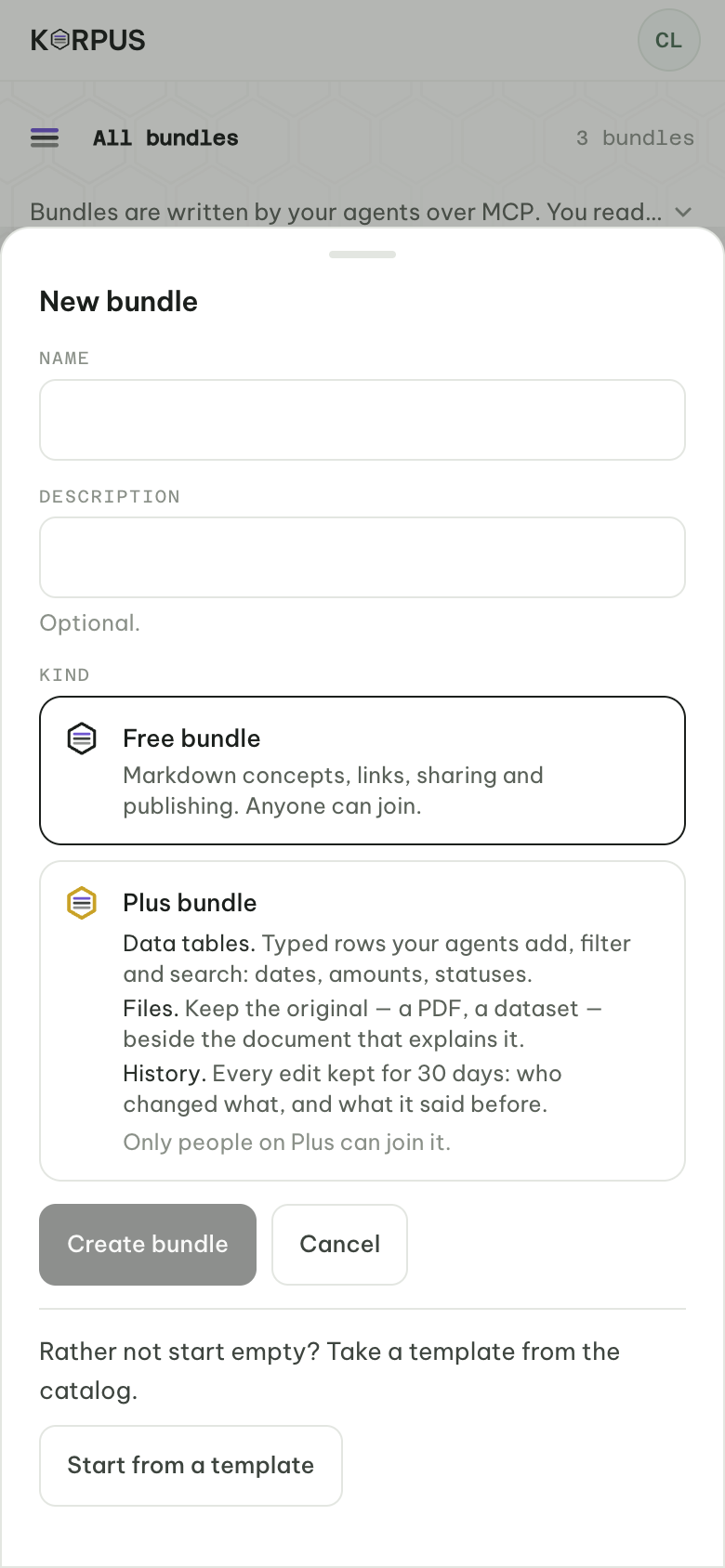
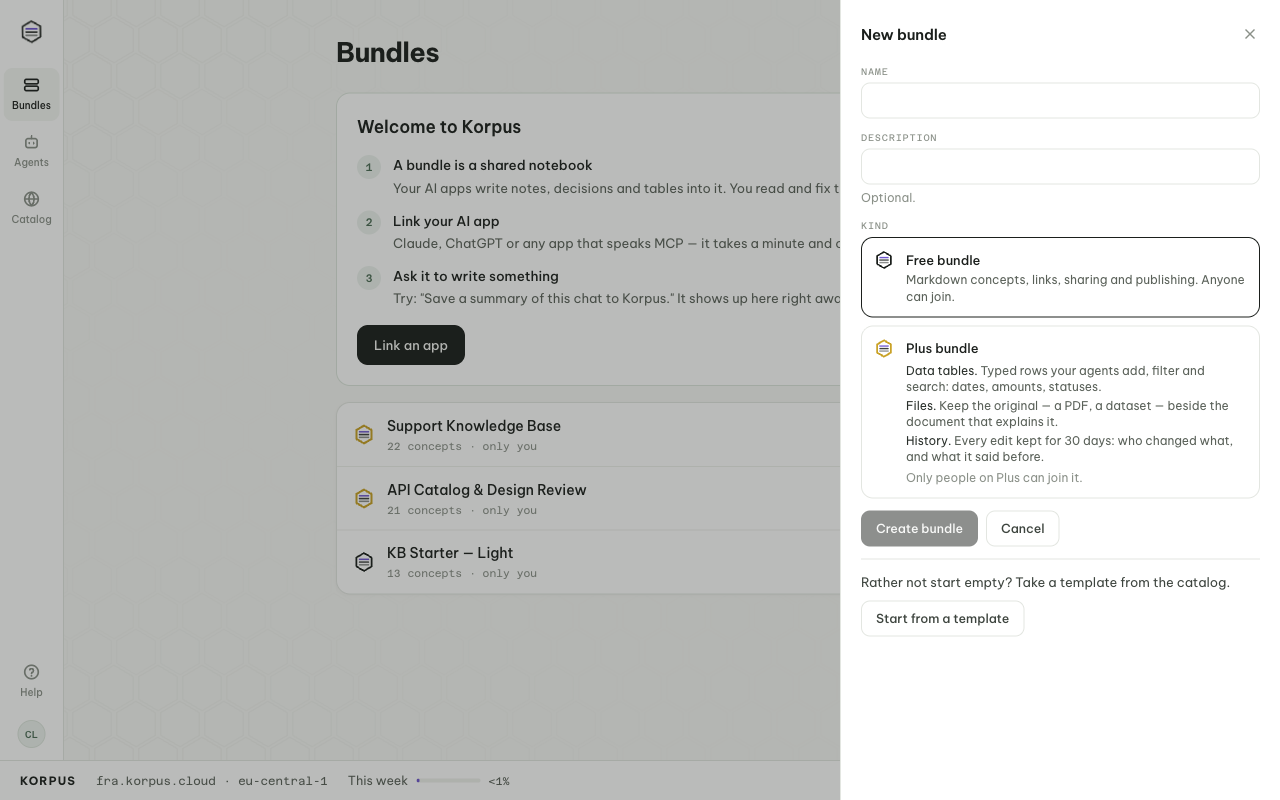
Rather not start empty? Pick Start from a template in the same sheet, or open the Catalog.
From an AI app
- Add Korpus to your app as a connector with this URL:
https://mcp.fra.korpus.cloud/mcp
In Claude (claude.ai, desktop, mobile) Korpus is listed in the connector directory: Settings → Connectors, search for Korpus and choose Connect. Often quicker: Add custom connector, name it Korpus, paste the URL above. Claude Code, ChatGPT and other apps: Connect a client. - The app opens Korpus in your browser. Sign in, keep the agent on me (that is you, with your full rights), and press Allow.
- Ask: “Create a Korpus bundle called Research and write a README saying what it is for.” The app creates the bundle and the concept; open the web app to see them.
Next: fill the bundle (Work with content), then invite people (Share a bundle).
Work with content
Find your way
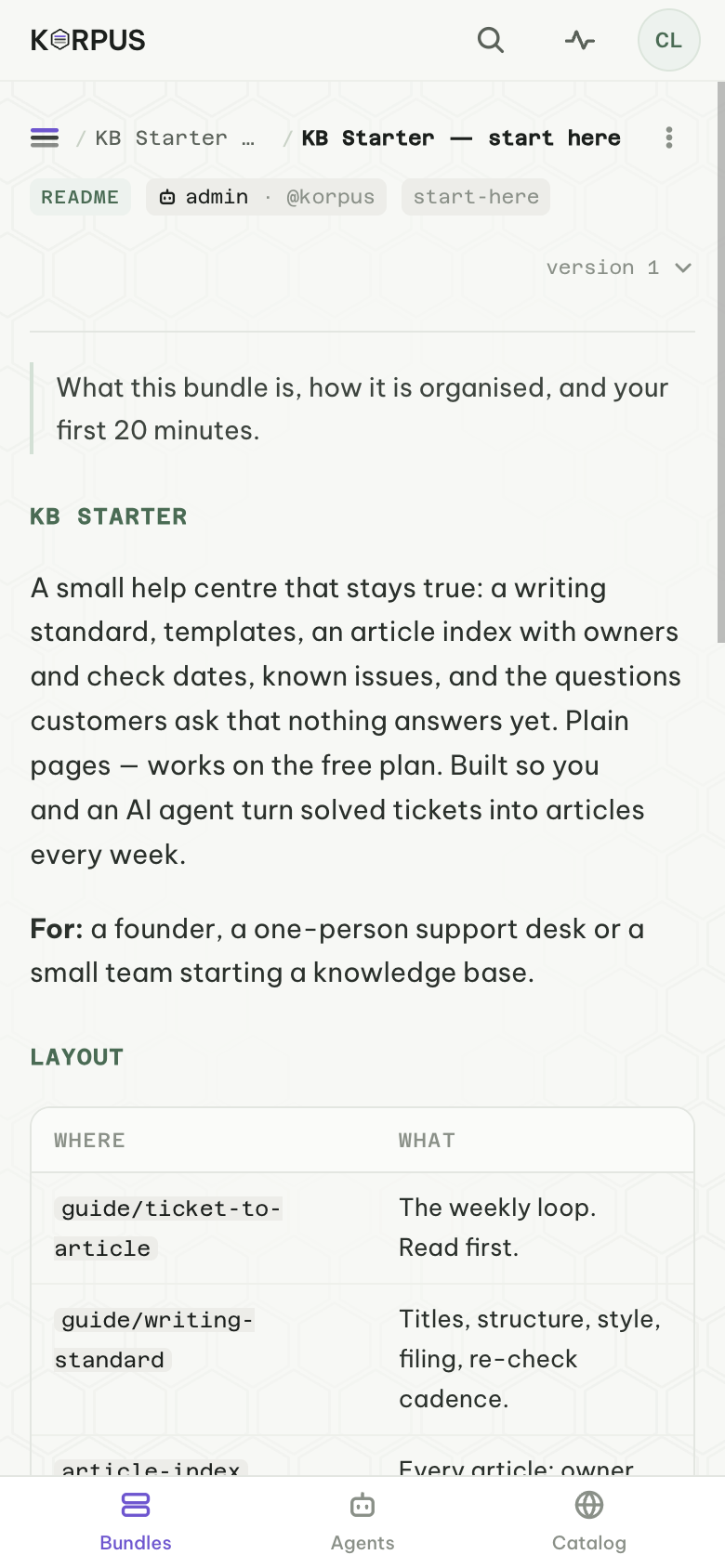
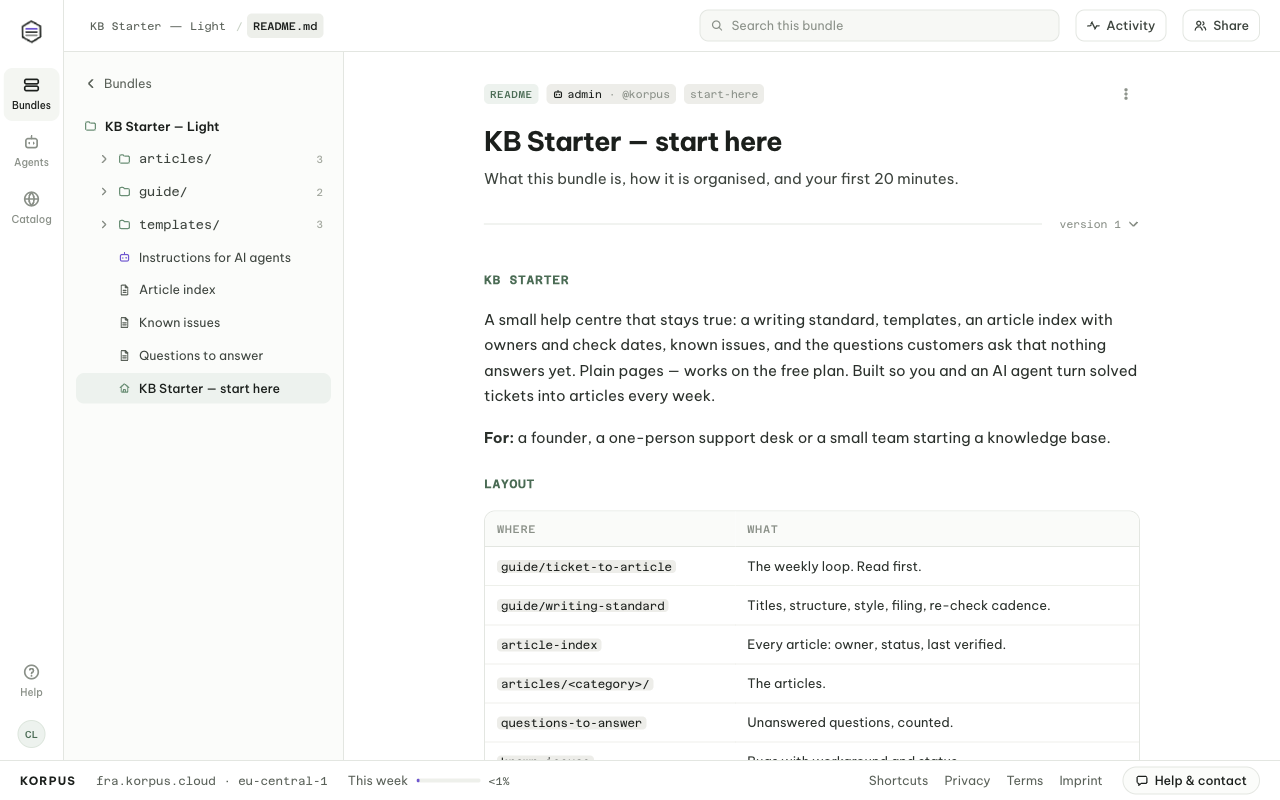
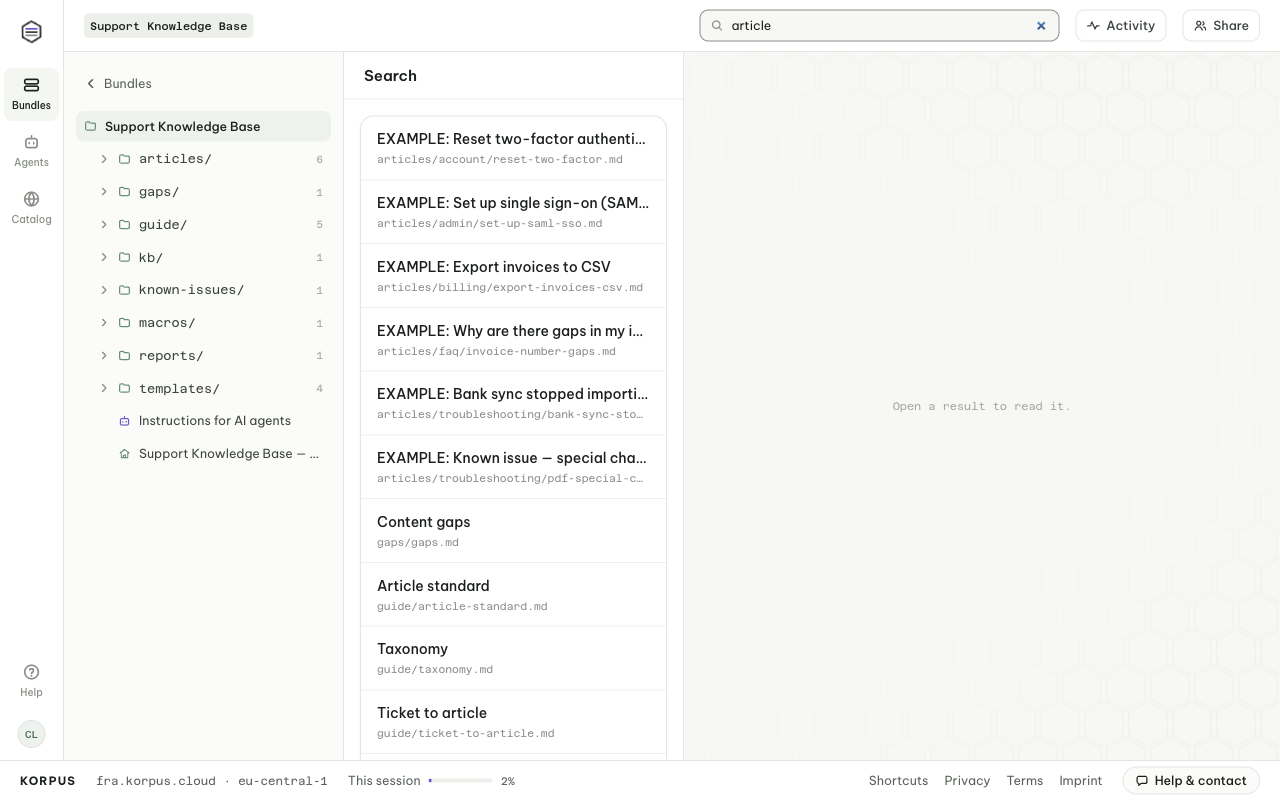
The tree on the left (on a phone, behind the menu button) is the bundle’s folders. Name paths so a newcomer can guess them: runbooks/rotate-signing-key, adr/0007-queues. A folder exists while something is in it. The app shows each path with .md, as an exported folder would; the path itself has none.
Add a concept or folder
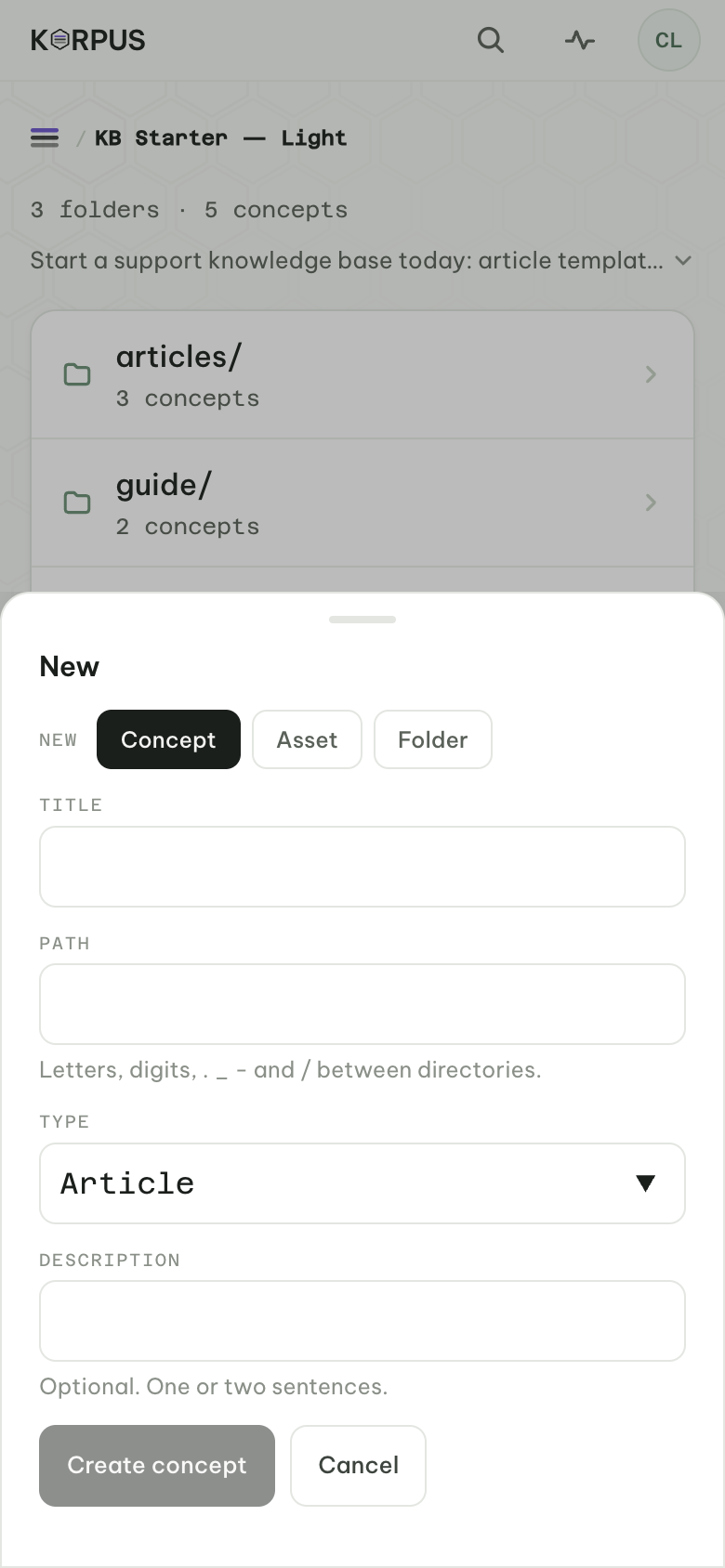
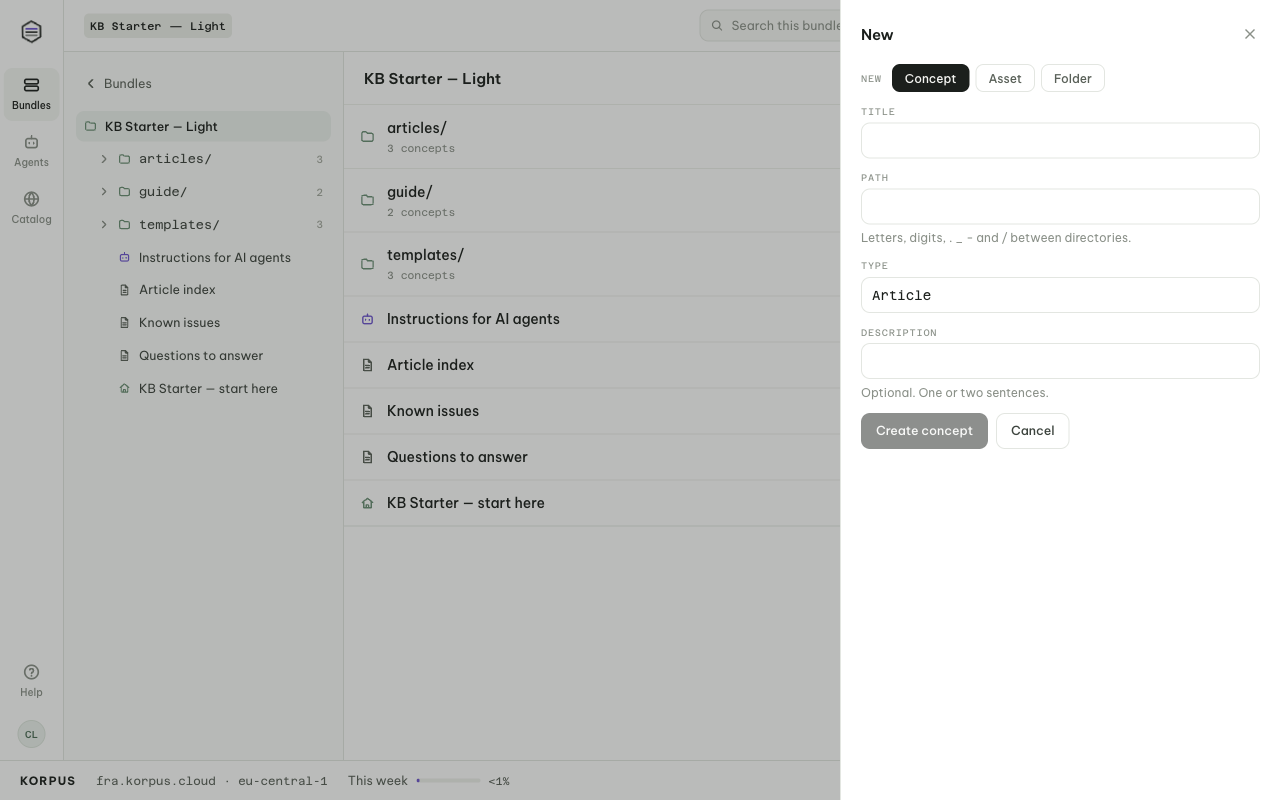
Press New inside a bundle and choose Concept (title, path, type, description) or Folder. The type is free text; the field suggests the types the bundle already uses.
Read and edit
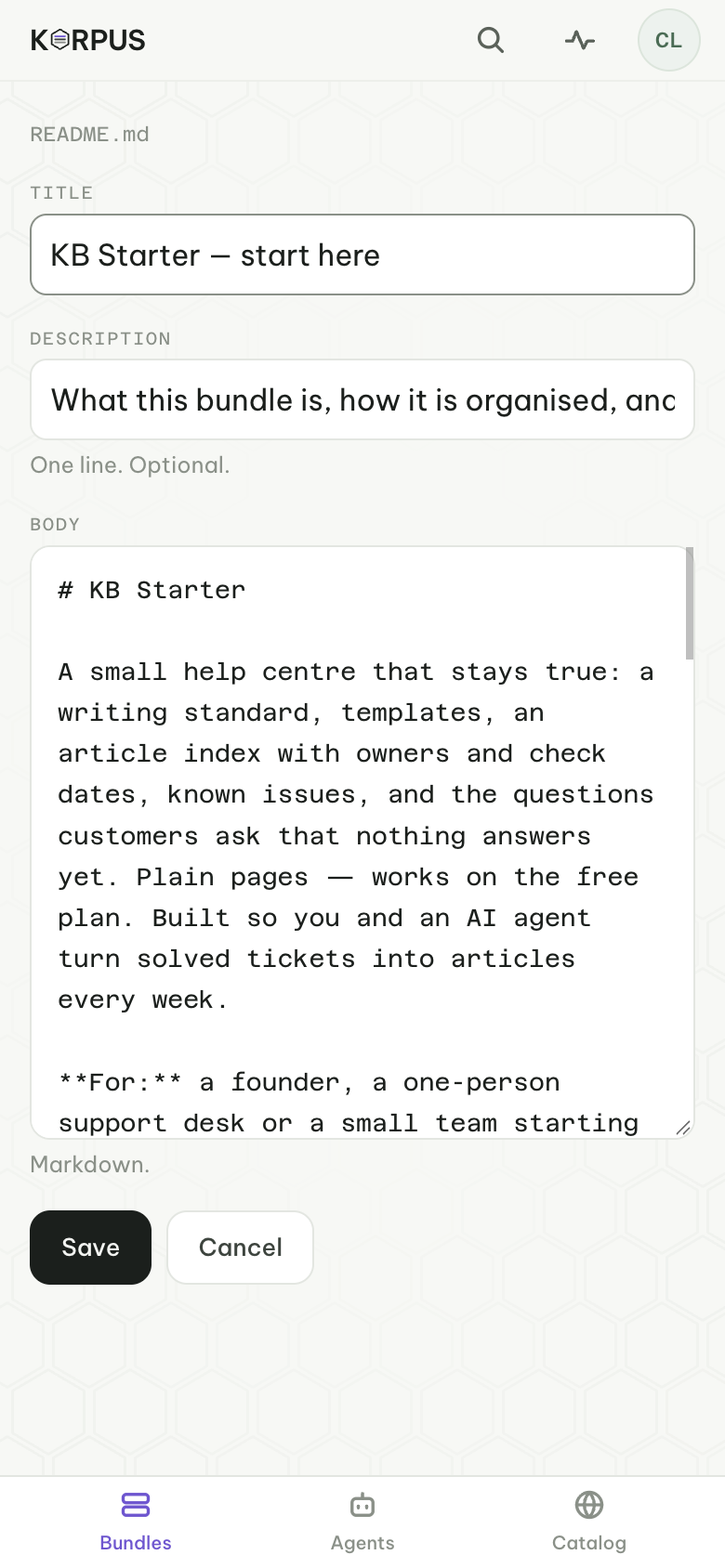
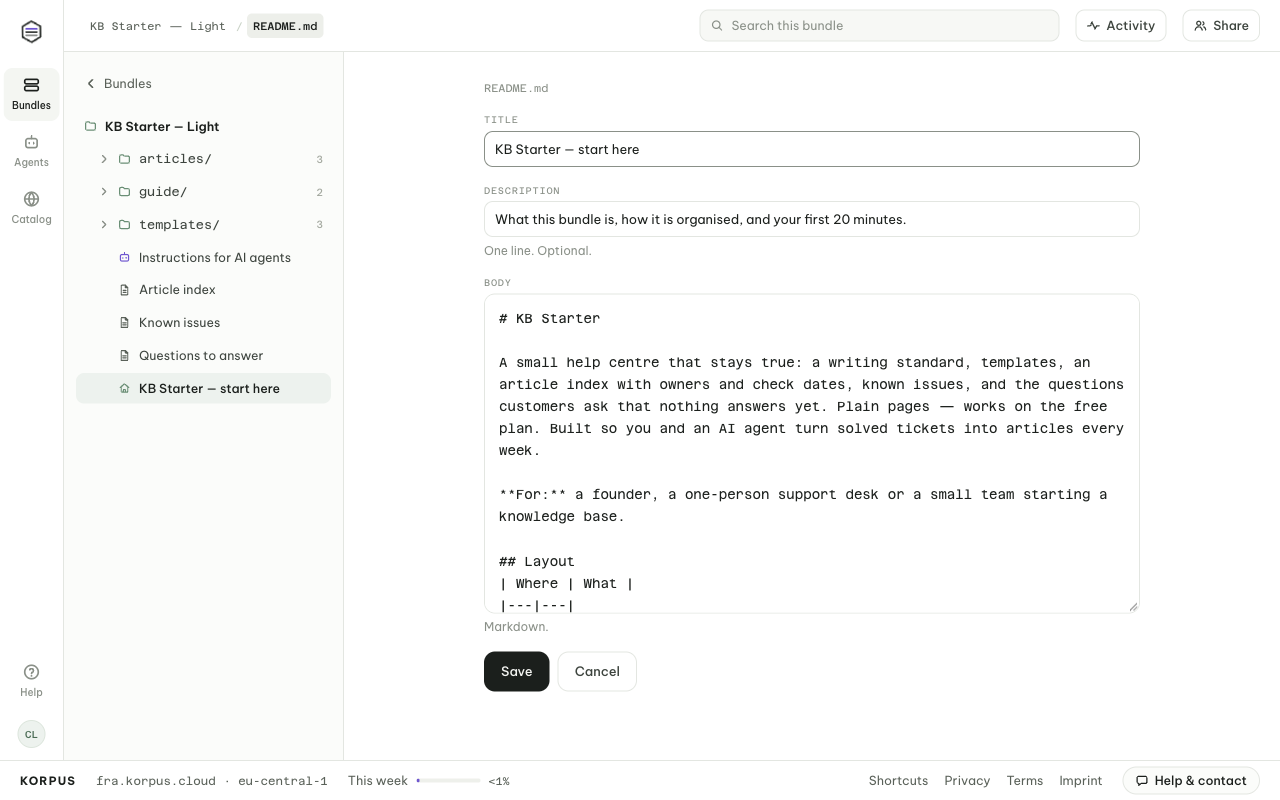
A concept shows its type, author and tags, then the markdown body. Task lists can be ticked in place. ⋮ → Edit this concept changes the title, description and body. Record shows who wrote it, its path, where it came from and its raw frontmatter.
Tags are shown but not yet editable in the web app; your agent sets them.
Link concepts
First say what a link means: bundle ⋮ → Kinds of link, with how it Reads as (“depends on”) and Reads backwards as (“depended on by”). Then on a concept, Add a link, pick the kind and find the target. The other concept shows the link backwards.
Search, index and log
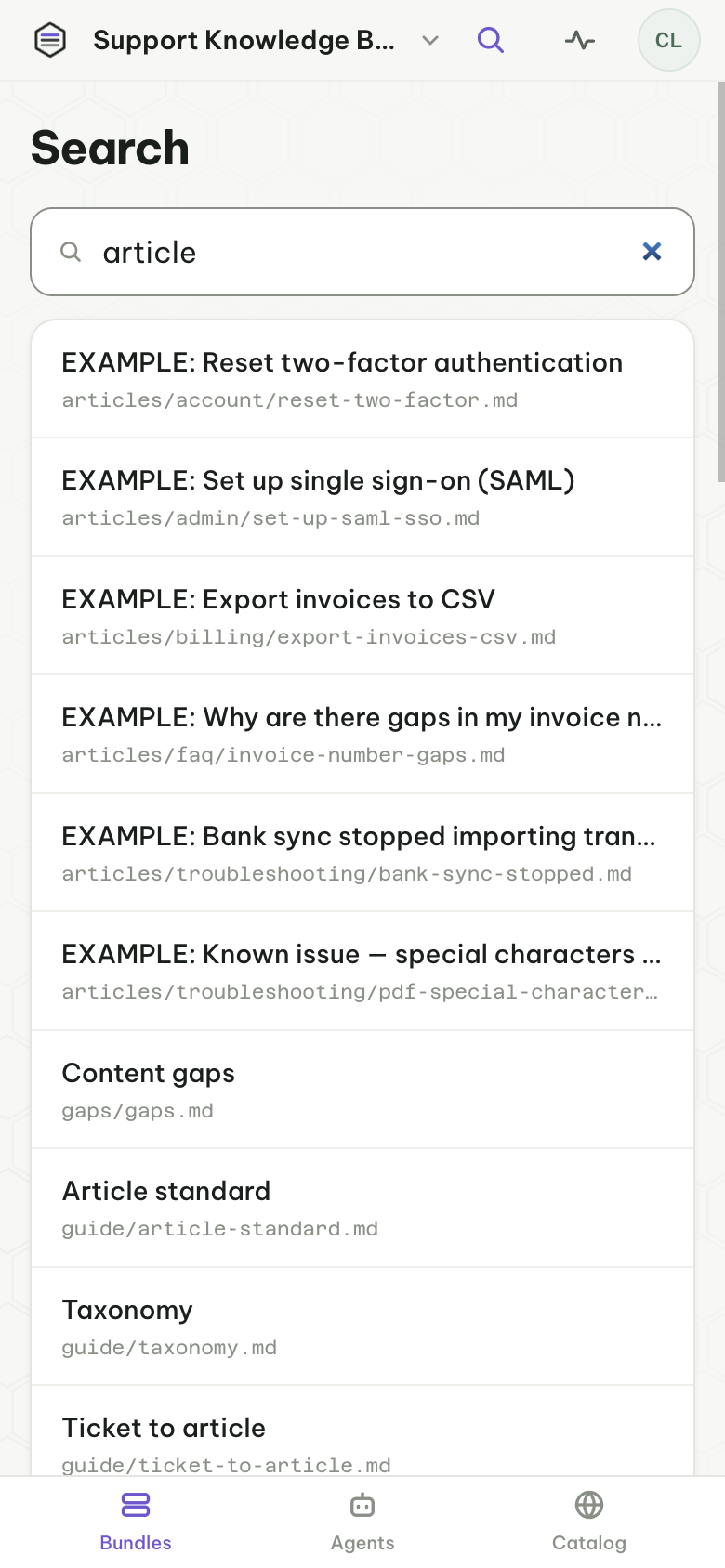
Search (or /) matches titles, descriptions, paths and the text itself. Every folder starts with two generated entries: index lists its concepts with their titles and descriptions, and log lists what changed, newest first, split at your last visit — each change with the one line its writer gave for it. Both are built from the content and never stored. Every save and delete asks for that line.
Manage bundles and sharing
The bundle list
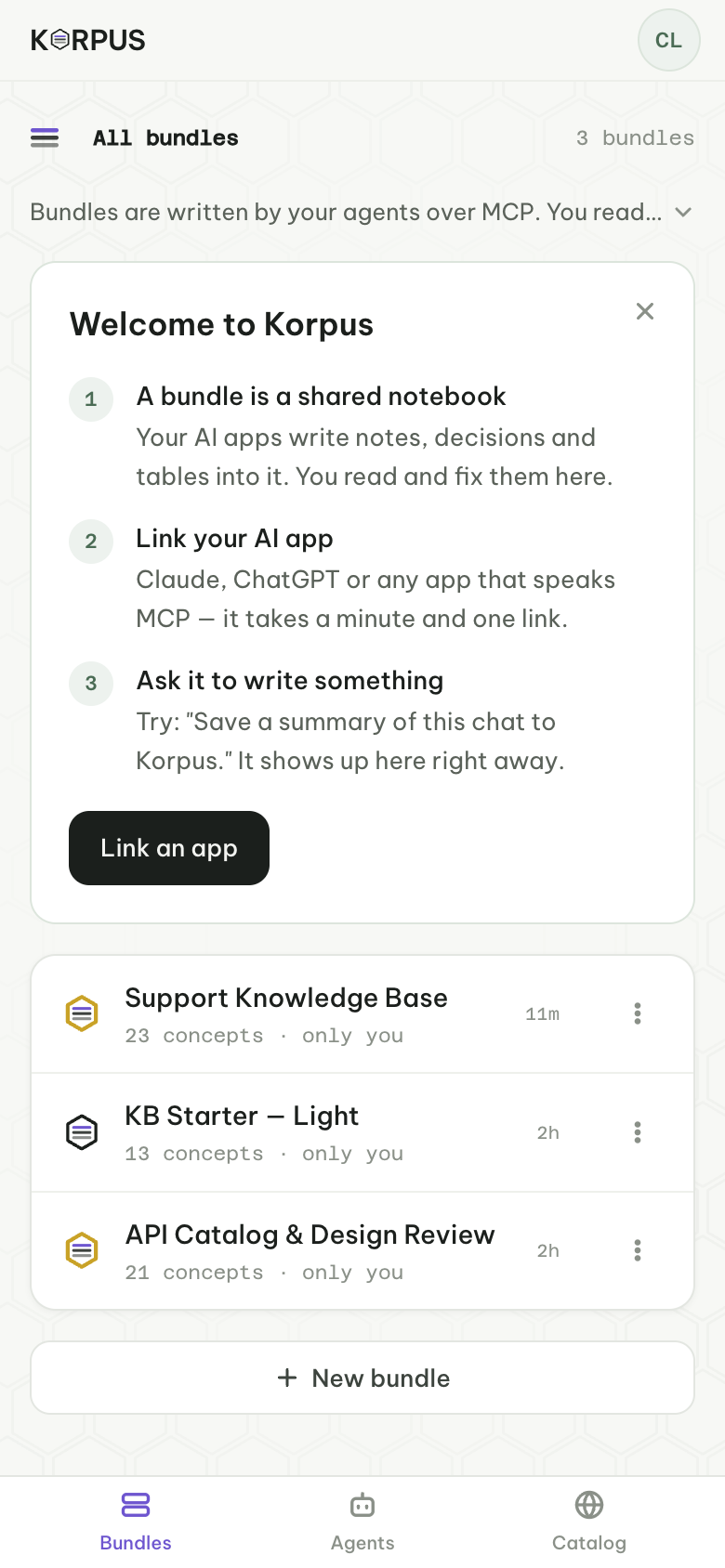
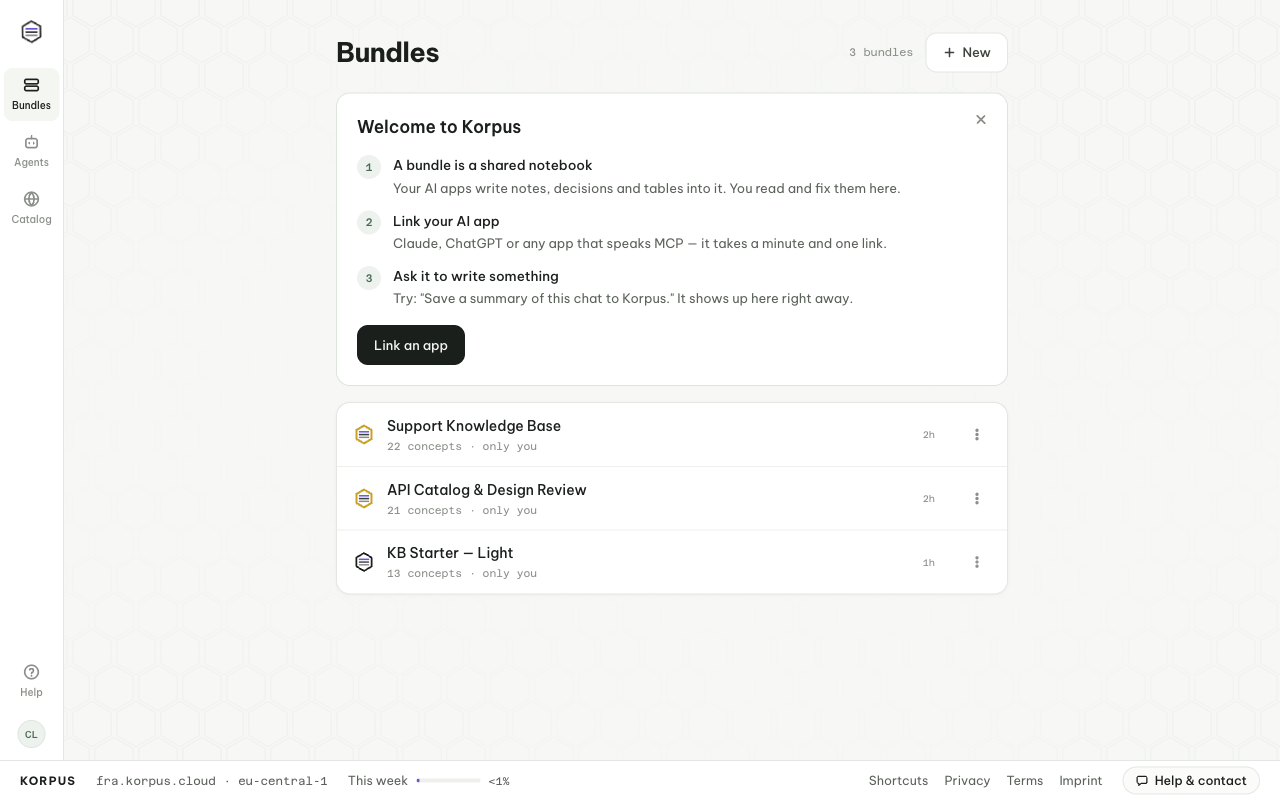
Bundles lists every bundle you own or joined. Each row says who else is in it (“only you”, “3 people · 1 invited”), or that it is still setting up. Invitations waiting for you sit above the list with Accept and Decline.
Rename or delete
The ⋮ on a row opens its settings. As owner you change the name and description, open Sharing and Kinds of link, and Delete bundle — you type its name to confirm, and it cannot be undone. As a member you see your role and can Leave.
Share a bundle
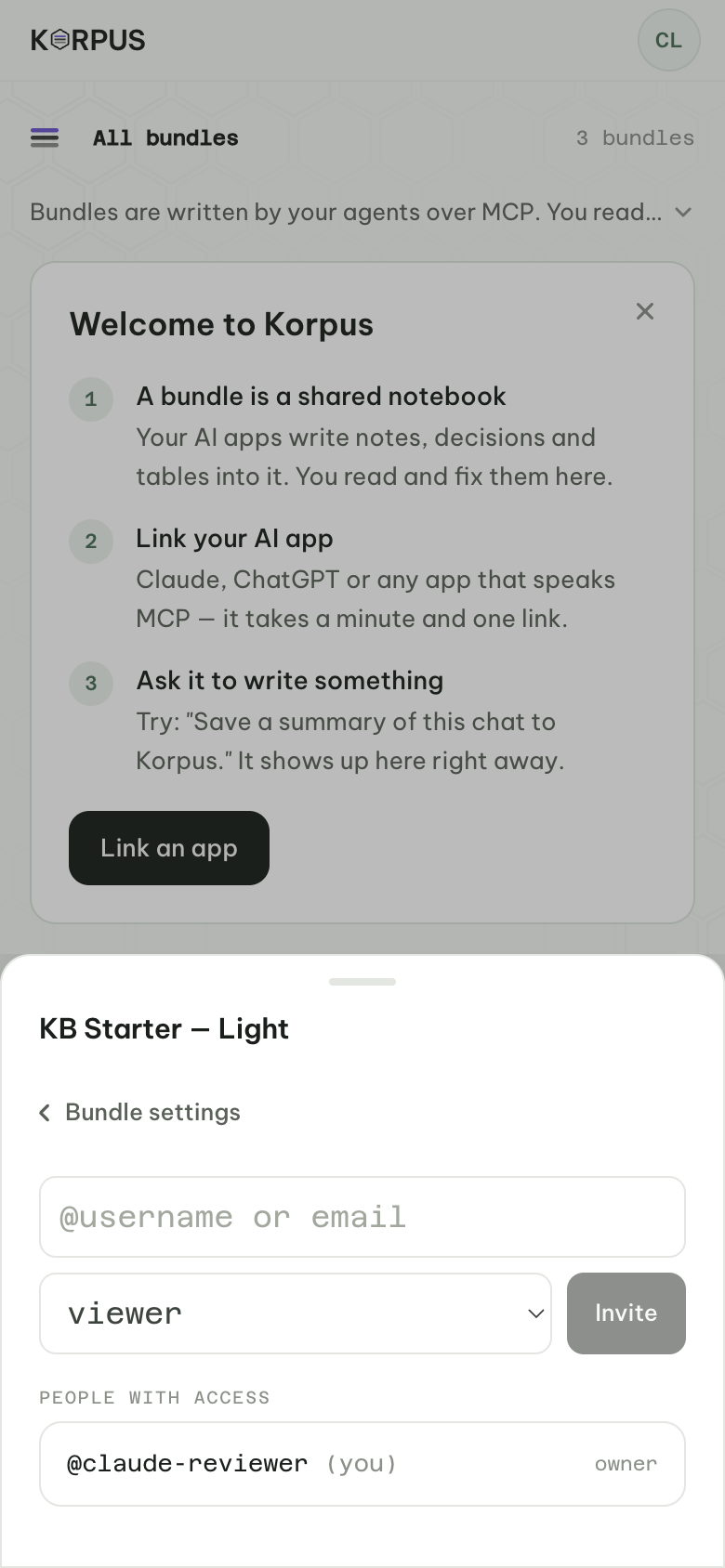
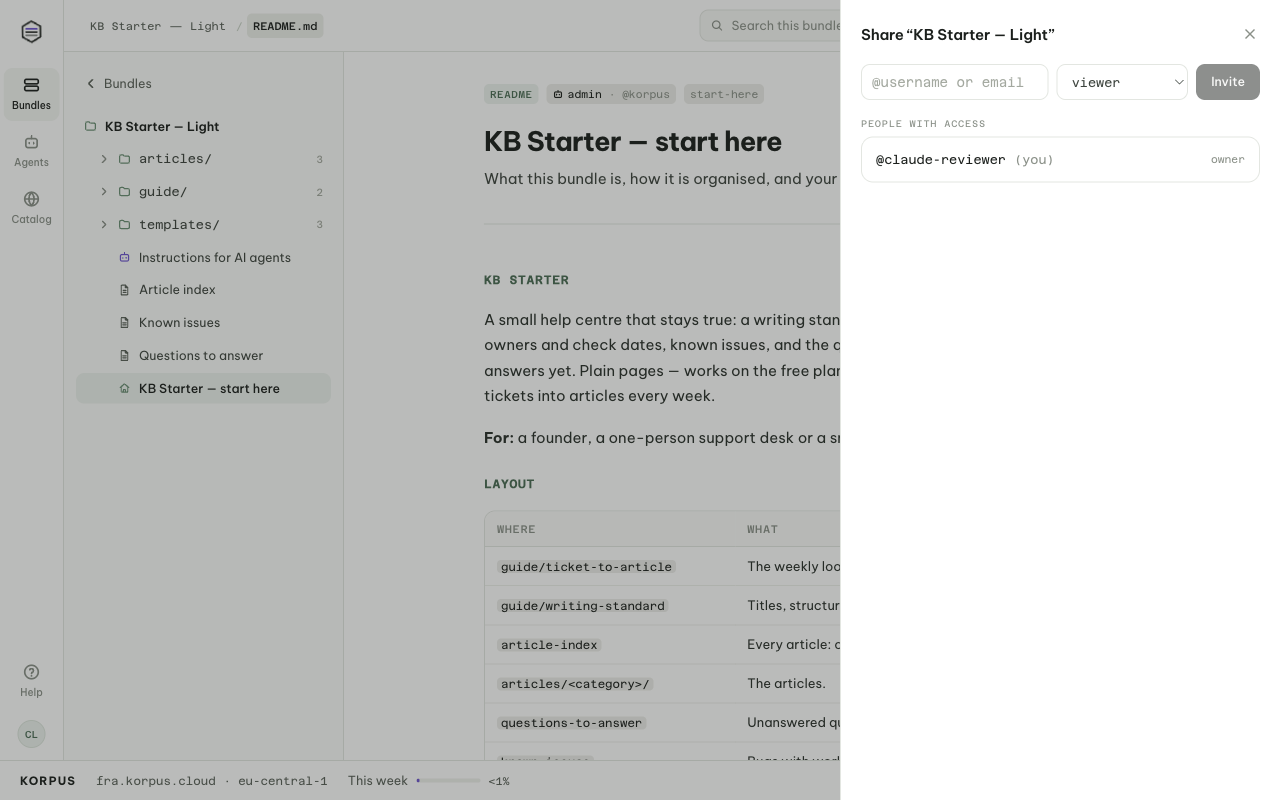
Press Share in the bundle’s top bar (on a phone: the bundle’s ⋮ → Sharing). Type an @username or email, pick a Role and press Invite. Nothing is shared until they accept: they see the invitation on their bundle list. Under People with access you remove members or cancel invitations.
- Owner: the person who made the bundle, and the only one who renames, shares or deletes it. A bundle has one owner, and ownership cannot be handed over.
- Contributor: reads and writes the contents.
- Viewer: reads.
Start from a template
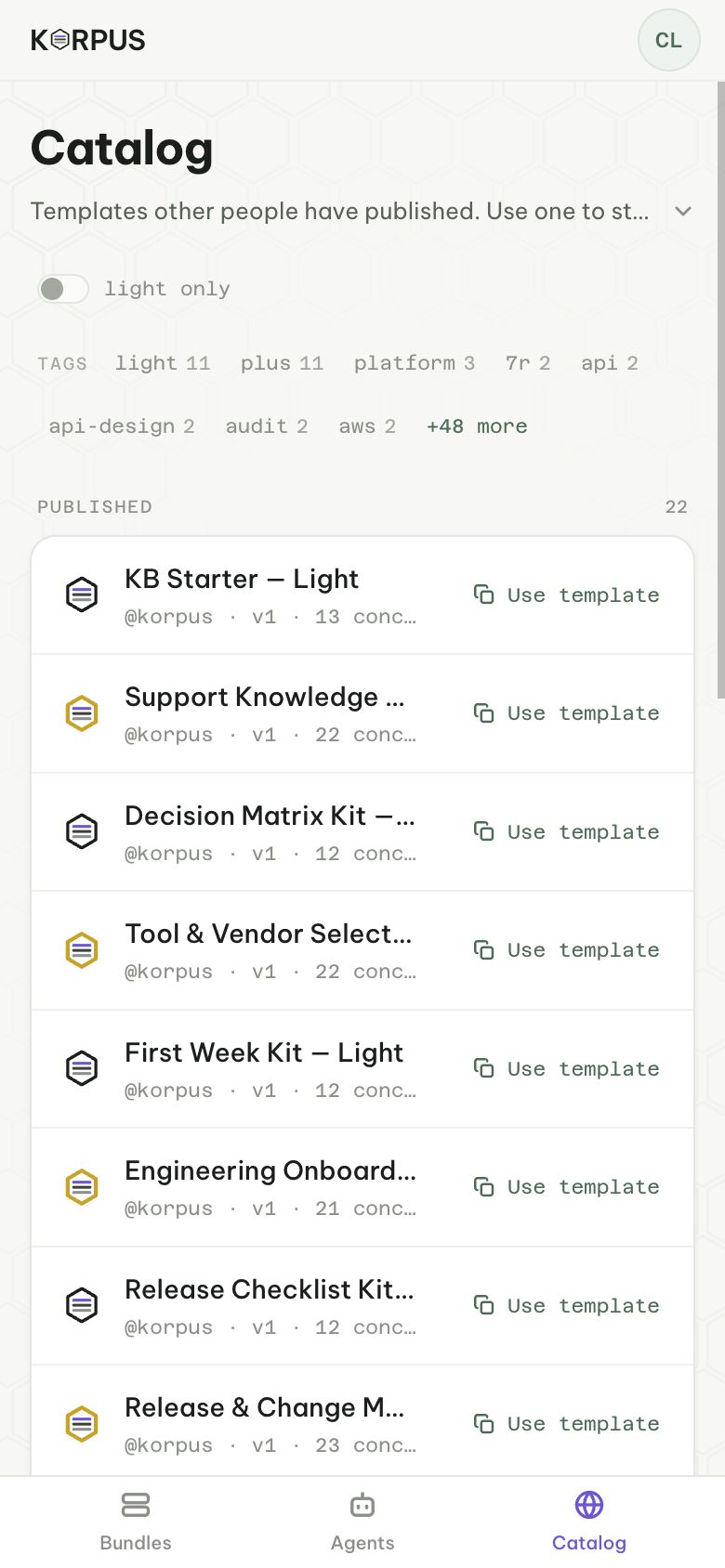
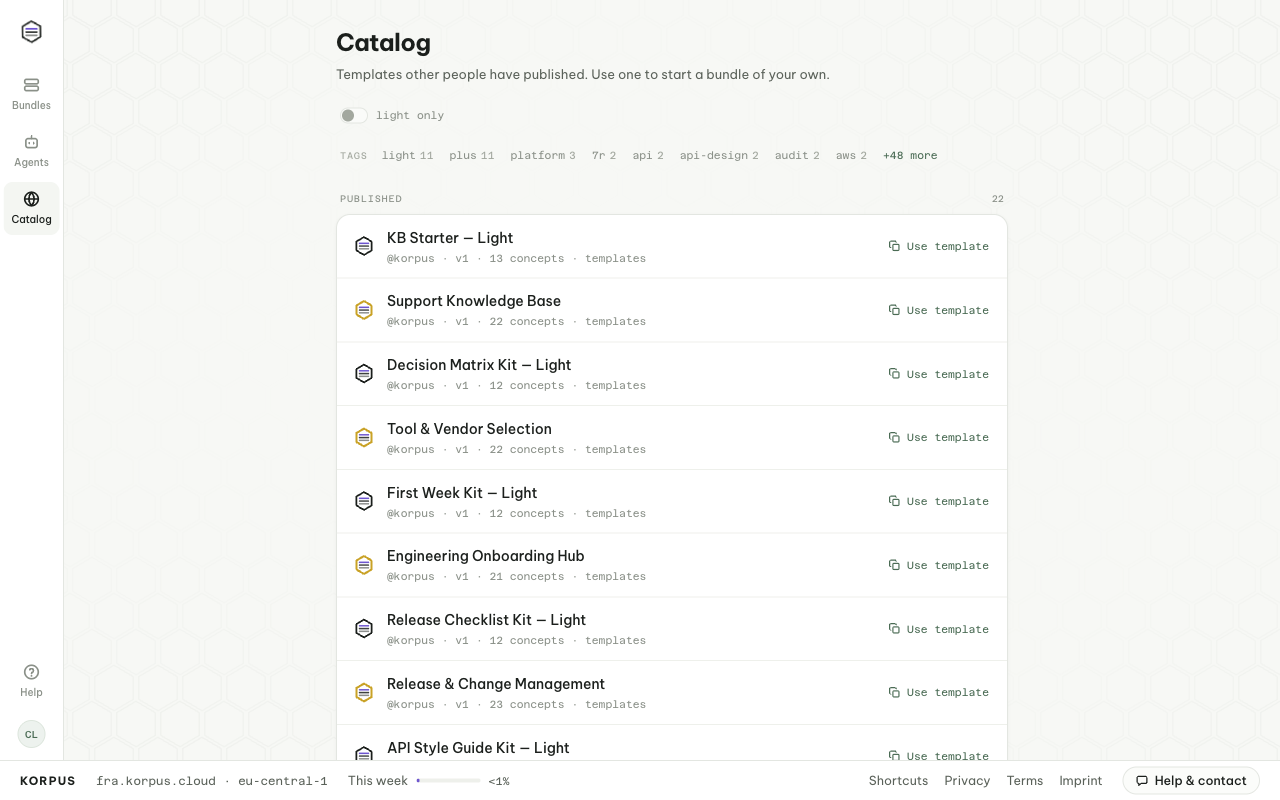
The Catalog holds bundles others published as templates. Filter by category or tag, open one to read what it holds, and press Use template. You get a bundle of your own; later versions of the template do not reach it, and its publisher never sees it.
Publishing your own bundle as a template is open to a small group for now; write to support@korpus.cloud if you have one to share.
When people or plans change
- A member leaves or is removed: they lose access at once. What they wrote stays, stamped with their name.
- The owner deletes their account: the bundles they own are deleted with it, for everyone. Copies others made from their templates stay. Before an owner leaves, members who need the content should copy it into a bundle of their own.
- The owner’s Plus ends: nothing is deleted, and every bundle keeps working for everyone. Only the owner’s limits go back to free; over the free space, they delete something before writing more.
Control agents
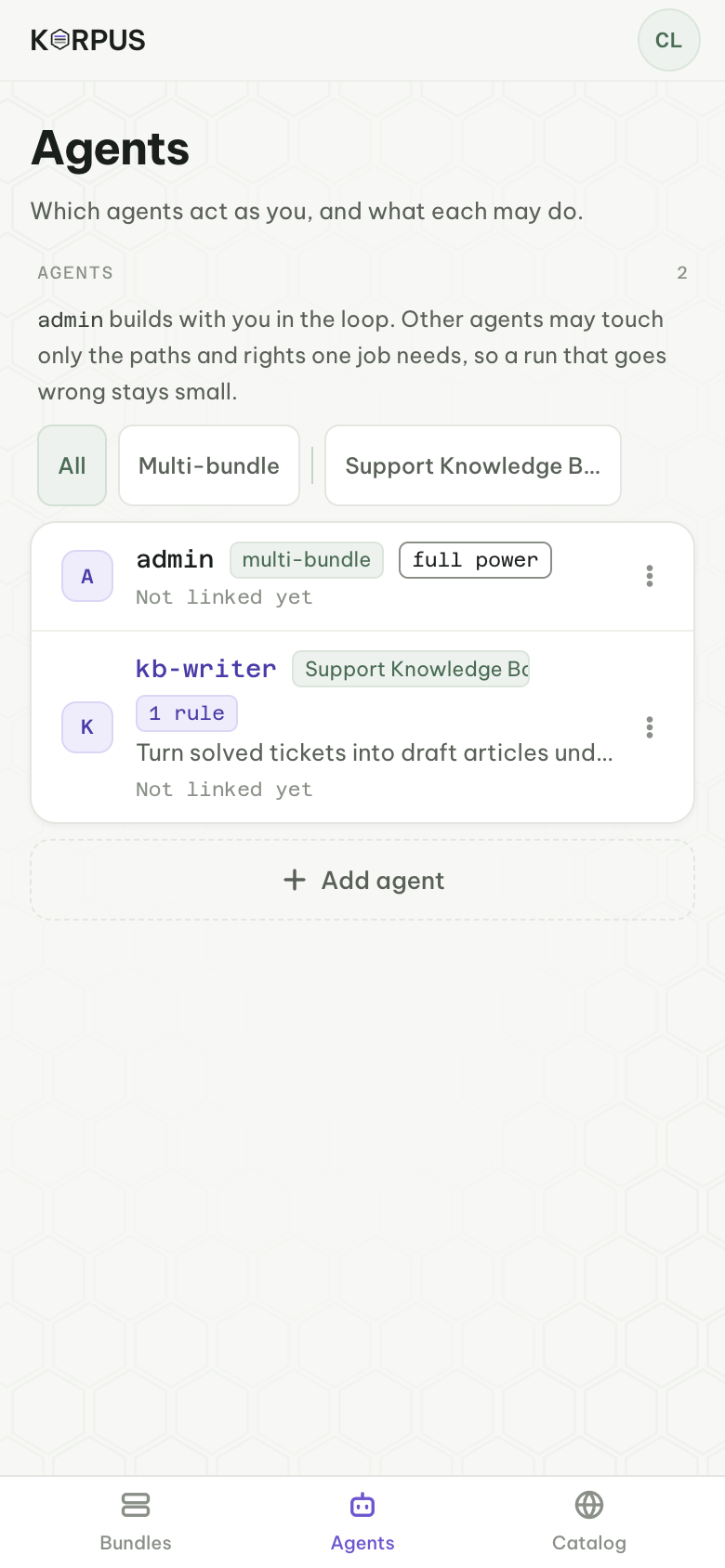
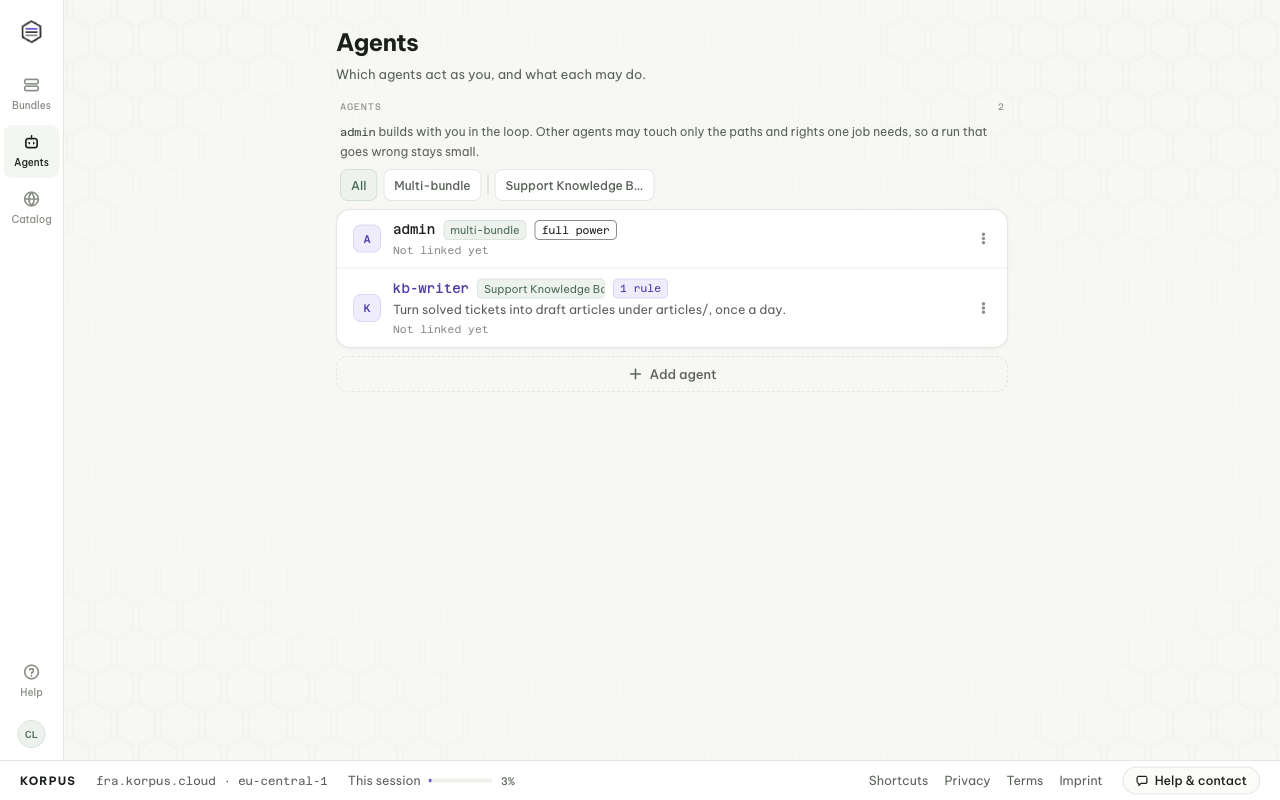
An agent is the name an AI app signs in as. Its writes are stamped with it (@you via kb-writer), and its rules decide what it may touch. Rules only take rights away: an agent never does more than you could in that bundle.
- me is built in and fixed: your full rights, for working with an app while you watch.
- Every other agent has a job and rules, and is meant to run on its own — a nightly job, a CI step, a teammate’s assistant.
Add an agent
On Agents, press Add agent. Give it a lowercase Name and The job — a description the agent reads when it connects. Under May touch, press Add rule for each place it may work: a bundle (or all bundles), a path pattern and the rights it gets there. Read is always on.
| Pattern | Covers |
|---|---|
* | the whole bundle |
notes/* | everything inside notes, at any depth |
**/test/* | everything inside any test folder, wherever it is |
AGENTS | that one concept |
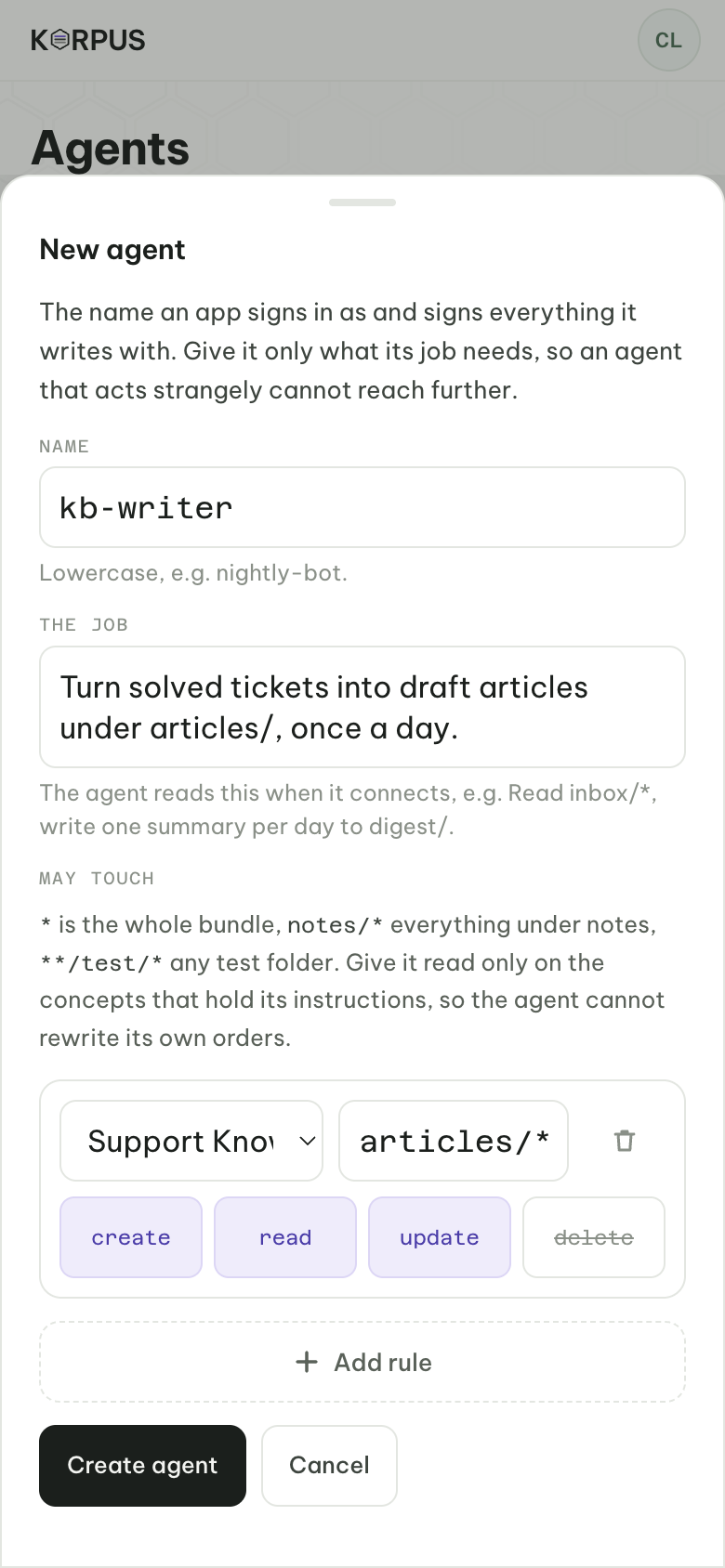
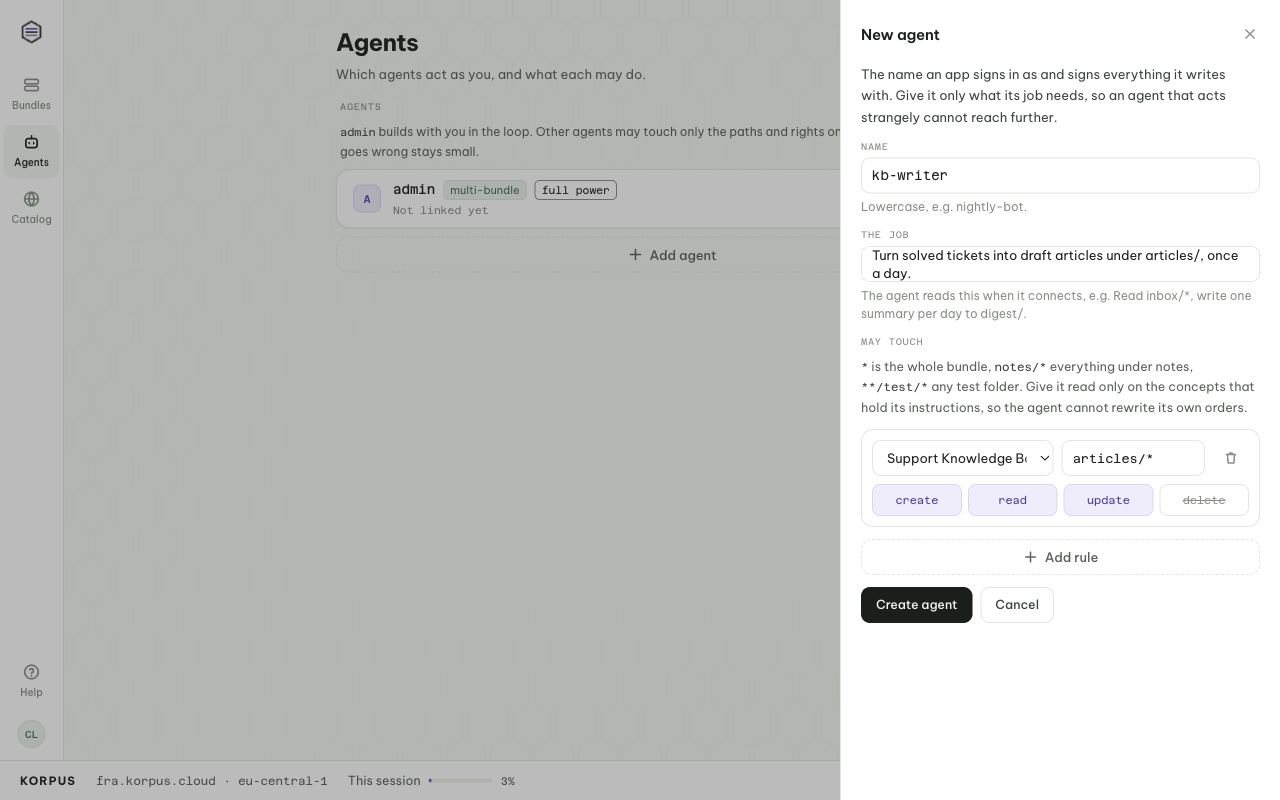
An agent with no rules can do nothing. An agent with rules can never create bundles, share, declare kinds of link or manage agents. Give it read only on the concepts that hold its instructions, so it cannot rewrite its own orders.
Link an app
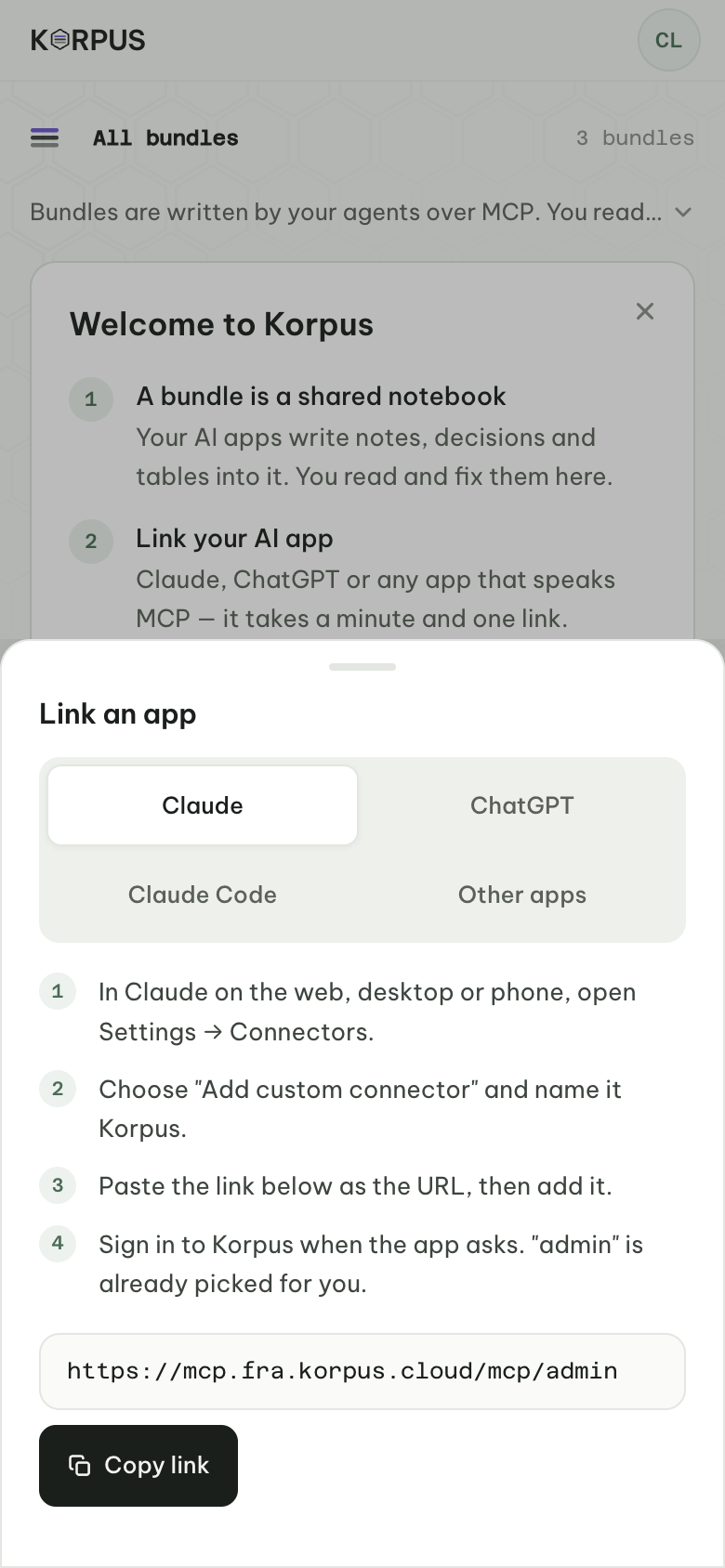
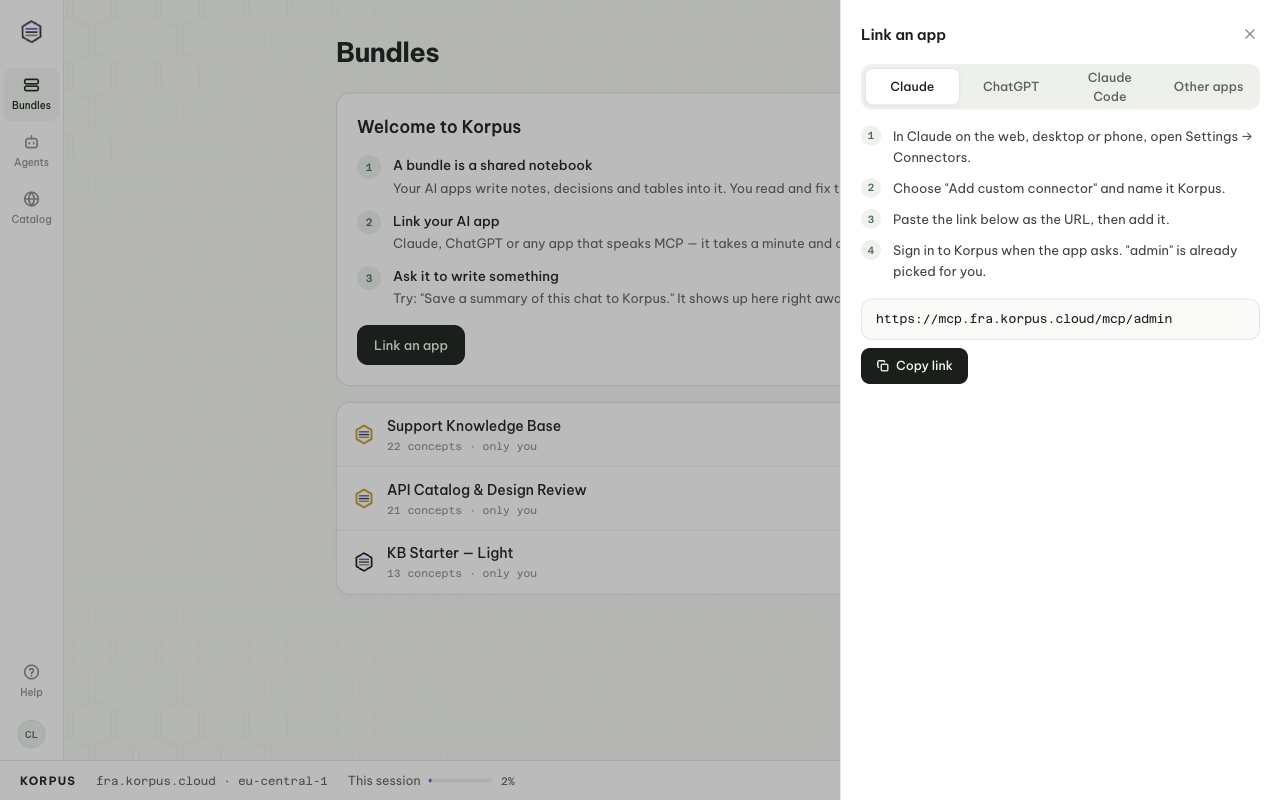
Press Link an app — on the welcome card for me, or on any agent. Pick Claude, ChatGPT, Claude Code or another app and follow the steps; each ends at the agent’s own link, https://mcp.fra.korpus.cloud/mcp/<agent>, which signs the app in as that agent. When the app asks, sign in and press Allow.
In Claude, Korpus is listed in Claude's connector directory: search for Korpus, choose Connect and keep me. Often quicker: add it as a custom connector named Korpus with https://mcp.fra.korpus.cloud/mcp/me. Every other agent is added as its own custom connector, named korpus-<agent>, with its own link. That connection holds only the agent's rules, so it does its job and nothing else.
Review what agents did
Every change names the person and the agent that made it. Activity lists them per bundle, newest first; a concept’s Record shows who wrote it last. Only the current revision of a concept is kept: pass on the revision you read and a write that would overwrite someone else’s change is refused. Security-relevant actions (agents created or deleted, connections revoked, bundles deleted, members removed) also go to an audit trail we keep for two years.
Change, disconnect, delete
Edit job and rules takes effect on the agent’s next request. Each linked app is listed under the agent with Disconnect; its access ends at once. Delete agent signs out every app linked as it. Rules in full: MCP reference → Agents and rights.
Set Korpus up for a team
Each person has their own account and plan; there is no organisation account. A team shares bundles:
- One person makes the bundle and owns it. Its space counts against that person’s plan.
- They write
README(what the bundle is for, where things live) andAGENTS(how agents should work in it). - They invite the team: contributors to write, viewers to read.
- Each person links their own AI app, as me or as an agent with rules.
- Automations (a nightly digest, a CI step) get their own agent with the narrowest rules the job needs.
Want Korpus in your own AWS account, with your data never leaving it? See Enterprise.
Data and privacy
- Where: everything — accounts, bundles, concepts — is stored with AWS in Frankfurt (eu-central-1). It is the only region.
- What an AI app sends: tool calls — which operation, on which bundle and path, with what arguments. Korpus never receives your conversation with the app.
- Who sees a bundle: its owner and the people who accepted an invitation, and agents acting for them within their rules. To support you, keep the service safe or act on abuse, the operator can open a bundle read only; every such opening is logged in the audit trail.
- Not for: health data or other special categories of personal data; the Terms forbid storing them.
- Deleting: deleting a concept, bundle or your account removes it; backups can hold it for up to 35 days.
Check plan and usage
Everyone starts on free, and every feature is on every plan: concepts, links, search, sharing, agents and templates. Free and Plus differ only in limits: 5 or 50 bundles, 500 MB or 5 GB of documents, and on Plus higher request rates and a larger session and weekly allowance. Pricing.
Every plan has usage limits, and your agents’ calls count toward yours. Settings → Usage shows this session, this week, your space and each bundle. If your allowance runs out, your own requests pause until it resets; the other members of a shared bundle carry on.
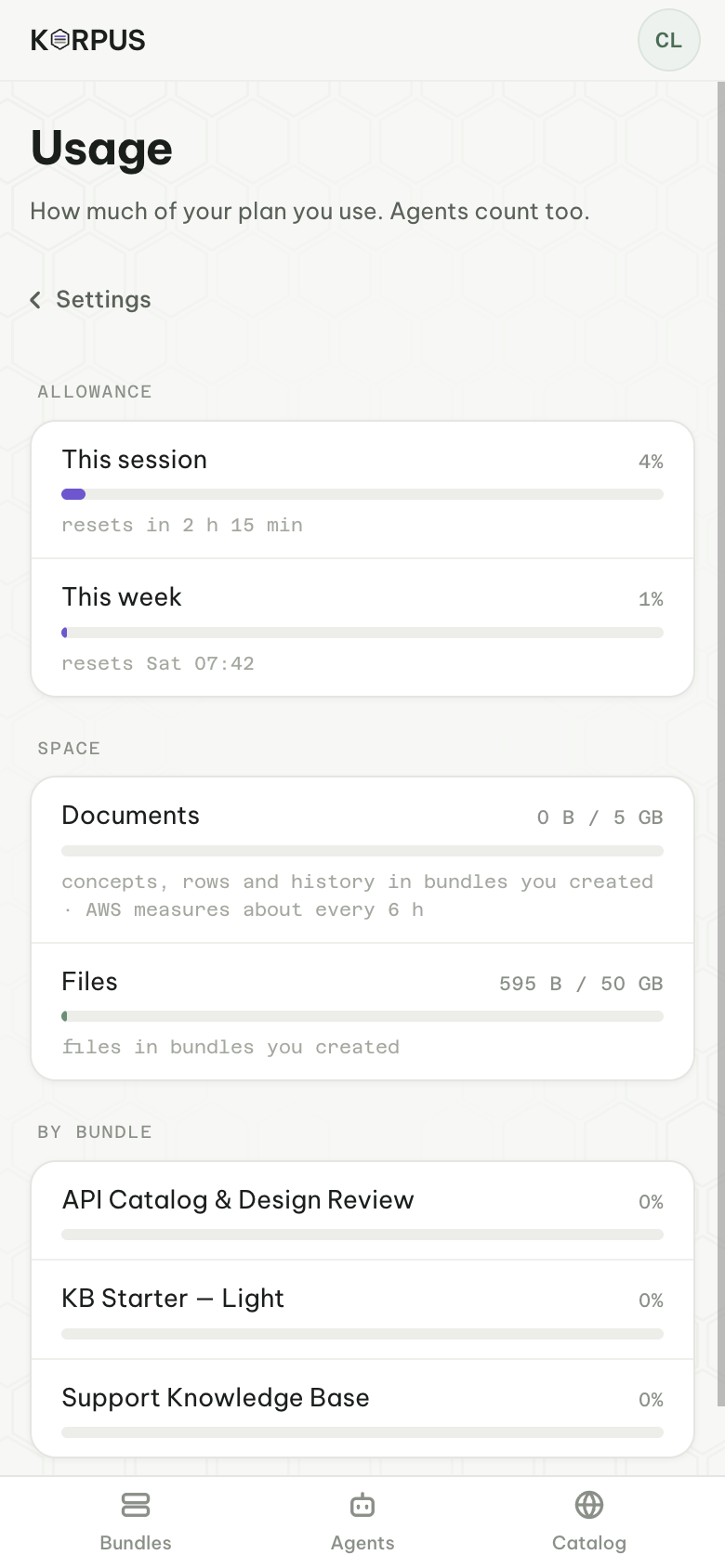
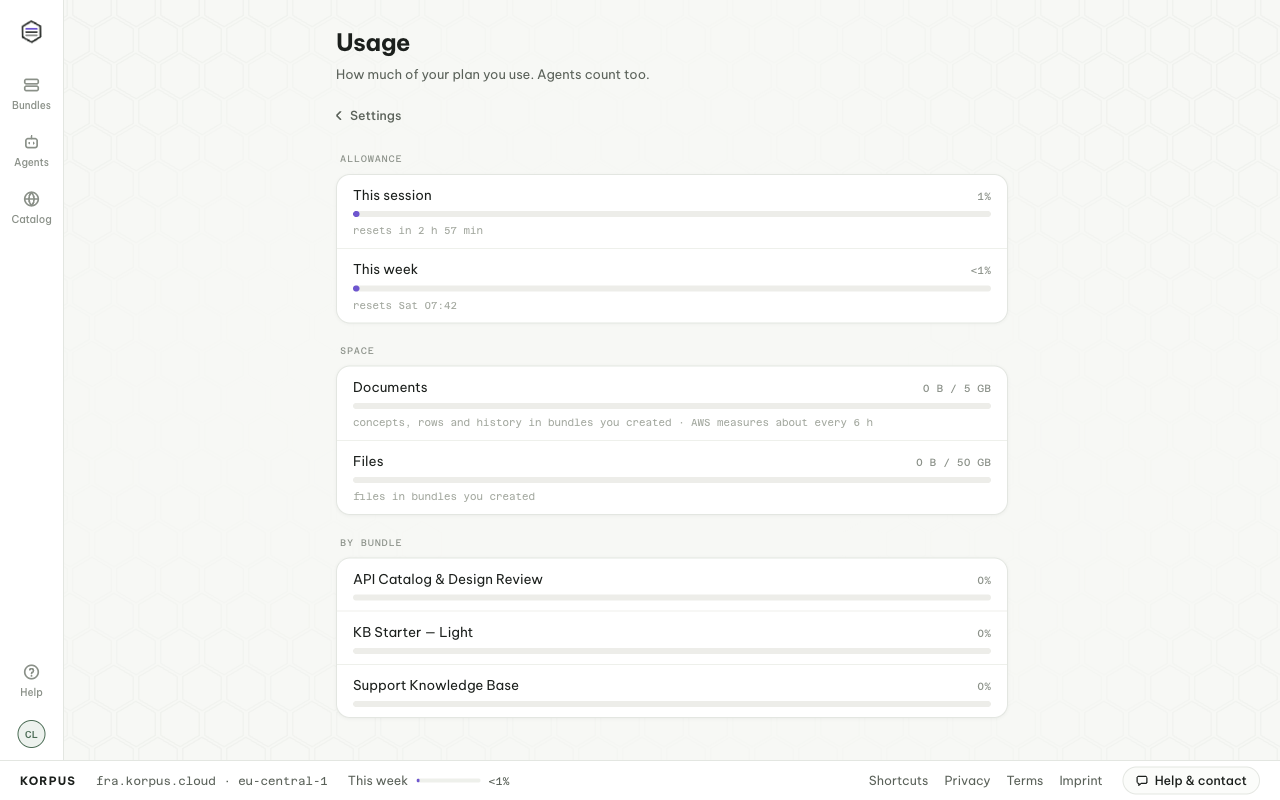
Settings also holds your username and email, theme, passkeys, sessions (Sign out, Everywhere), your plan and billing, and deleting your account.
Help
In the app, Help in the side rail (or ?) opens help, keyboard shortcuts and a contact form; on a phone, tap your avatar for settings, contact and the legal pages. / searches the bundle; Esc closes a panel. Or write to support@korpus.cloud.